
Passwords where you browse: what a native Vault changes about the daily flow
Every web worker logs into services dozens of times each day. You authenticate with code repositories, payment gateways, issue trackers, email clients, and cloud consoles. Yet despite being the most frequently touched utility on the web, password management in modern browsers remains an awkward afterthought.
Standard browsers treat credentials as an annoyance shoved into transient floating balloons. If you click two pixels off target, the popup vanishes along with what you typed. Third-party extensions attempt to patch the gap, but they introduce their own friction: detached windows, layout shift, and floating badges that collide with page navigation.
Maho takes a different path. Instead of relying on fragile popovers or detached utilities, Maho builds a native Vault surface directly into the browser shell. Credential management becomes a predictable part of your daily canvas, keeping you in flow while establishing clear boundaries when AI agents browse alongside you.
The state of the art: Arc and Zen lean on inherited managers
Section titled “The state of the art: Arc and Zen lean on inherited managers”To understand why daily password interaction feels fragmented, we have to look at how modern alternative browsers handle credentials.
Zen Browser builds on Firefox, inheriting Mozilla’s built-in credential manager. Firefox provides a dependable foundation with about:logins. It saves credentials locally inside your profile, fills standard forms reliably, and keeps settings organized in a familiar tab. Zen rightly avoids breaking what Firefox already solved. The interface feels utilitarian, but it behaves consistently.
Arc took a different route. The Browser Company focused creative energy on vertical tabs, Spaces, split views, and fluid window management. When it came to credentials, Arc inherited standard Chromium popups. The browser offered the familiar small bubble dropping down from the address bar to save or update passwords.
Because standard browser bubbles feel basic, many people install third-party password extensions. While standalone utilities offer rich features, running them inside a browser introduces daily friction:
- Popovers float above the viewport, clipping off-screen on small displays or split views.
- Autofill overlays fight with dropdown menus, date pickers, and search inputs on complex apps.
- Unlocking an extension launches a detached helper window that steals focus from active work.
- When an extension misses an unusual login form, you must open its menu, search, copy the password, and paste it manually.
These papercuts add up. When your credential manager lives in a floating bubble or a separate menu bar utility, you constantly switch contexts to log into work tools.
Maho’s choice: a native Vault surface
Section titled “Maho’s choice: a native Vault surface”Maho replaces the Chromium password bubble with a dedicated, native Views surface. Instead of treating credentials as floating popups that disappear on accidental clicks, Maho gives the Vault a stable home in the browser side panel.
+-------------------------------------------------------------+| Maho Native Vault Panel |+-------------------------------------------------------------+| Origin: app.datadoghq.com || Status: Unlocked |+-------------------------------------------------------------+| Accounts: || > [email protected] [ Autofill ] [ Copy ] [ Edit ] || [email protected] [ Autofill ] [ Copy ] [ Edit ] |+-------------------------------------------------------------+| Quick Actions: || [ Generate Password ] [ Add Account ] [ Lock ] |+-------------------------------------------------------------+Because the Vault is built into Maho’s native Views architecture, it offers clear advantages over extension overlays:
First, the panel stays put. You can open the Vault in your sidebar, look up a credential, or copy a token without the interface vanishing when clicking the page.
Second, the UI renders instantly. Extension popups require spinning up an isolated web environment and rendering HTML through a background process. Maho’s native interface responds immediately to keyboard shortcuts, matching the responsiveness of the application.
Third, the Vault understands tab context. When you navigate to a domain, the Vault highlights accounts matching that origin. You don’t need to type domain names into a search box or scroll through unrelated entries.
The fill flow, end to end
Section titled “The fill flow, end to end”A well-designed credential surface should feel invisible during ordinary browsing and deliberate when you make changes. Here is how Maho handles the three primary credential moments: creating an account, returning to a service, and updating an existing password.
1. Creating a new account
Section titled “1. Creating a new account”When you land on a registration page, Maho detects the password field and offers a generated passphrase directly in the active input. If you want custom parameters, opening the Vault panel gives you sliders for length and character sets.
Once you submit the form, Maho avoids displaying a fragile popup that blocks your view. Instead, a clean dock appears at the top margin of the viewport showing the exact origin and username detected. You confirm the save with Return, or dismiss it with Escape.
2. Returning to an existing service
Section titled “2. Returning to an existing service”Logging into a known service requires zero mental overhead. When a login form appears, Maho matches the origin against your Vault entries.
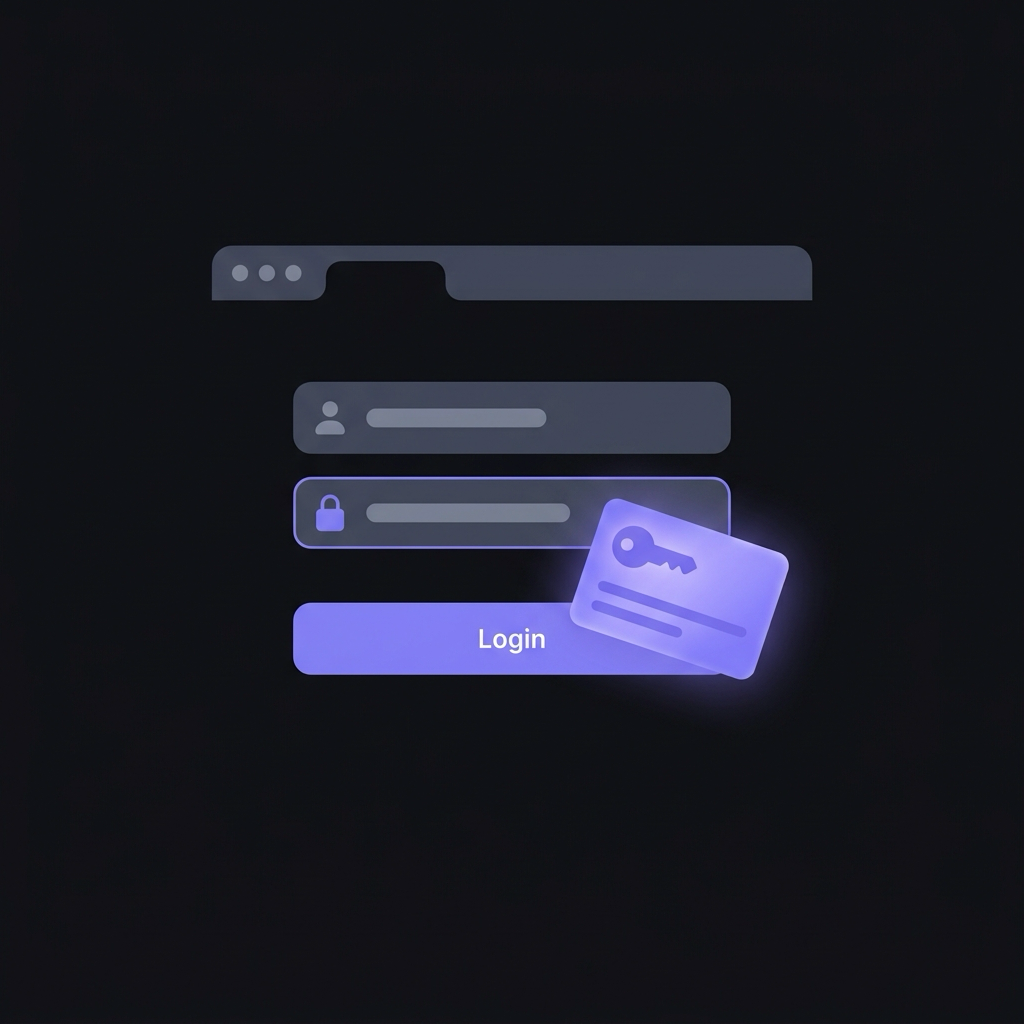
If you have a single login, fields populate automatically or with a single click on the input badge. When managing multiple profiles, such as personal and team accounts on GitHub or AWS, Maho displays a clear account switcher right next to the form field. Selecting an identity fills both fields without secondary dialogs.
3. Updating an existing password
Section titled “3. Updating an existing password”Updating a password is where traditional browsers create the most mess. Upstream bubbles often guess incorrectly, overwriting a primary login with a reset code or creating duplicate entries with missing usernames.
Maho avoids guesswork by showing an explicit diff preview in the side panel before saving changes:
Update Credential for api.stripe.comAccount: [email protected]Field: PasswordAction: Replace existing entry (Created: 2026-04-12)[ Confirm Update ] [ Save as New Entry ]You see exactly which account will change, the old creation date, and whether the update replaces an existing secret or creates a secondary profile. One click resolves the update cleanly.
Auto-lock as a daily habit
Section titled “Auto-lock as a daily habit”Auto-lock is a vital habit for anyone working in shared offices, coffee shops, or team environments. In many extension setups, auto-lock becomes so frustrating that people disable it entirely.
When an extension locks every fifteen minutes, unlocking requires clicking a tiny icon, waiting for an input field to gain focus, typing a master passphrase, and waiting for the background page to reload. If your mouse clicks outside the boundary, the window dismisses and you start over.
Maho makes auto-lock painless by treating locked mode as a standard, predictable state:
- The Vault locks automatically when your screen locks, when the browser idles for a configurable period, or when you trigger the global Vault shortcut.
- When locked, the Vault panel displays a compact unlock prompt without shifting your layout or hiding open tabs.
- Unlocking uses system biometrics like Touch ID on macOS or a quick local PIN.
- Because the interface is native, the prompt never drops focus or vanishes on stray mouse movements.
Removing the friction of unlocking encourages you to keep your Vault locked throughout the day without interrupting your concentration.
When the agent meets your passwords
Section titled “When the agent meets your passwords”Modern browsers are no longer just passive document viewers. With integrated AI agents capable of navigating websites, filing tickets, and extracting reports, managing access to credentials requires strict boundaries.
Allowing an AI agent to read passwords silently from storage would create severe risks. If an agent ran a script on a compromised page, it could expose your credentials to third parties.
Maho solves this by enforcing an explicit human gate. The agent runtime has zero direct access to Vault storage. When an automated task encounters an authentication step, it cannot autofill secrets or read stored tokens on its own.
Instead, the browser pauses execution and surfaces a typed-approval prompt directly to you:
+-------------------------------------------------------------+| AGENT PERMISSION REQUEST: VAULT CREDENTIAL |+-------------------------------------------------------------+| Origin: https://console.cloud.google.com || Account: [email protected] || Action: Fill login form for automated deployment || || Type 'APPROVE' to grant one-time credential fill: || [ APPROVE ] || || [ Deny Request ] [ Grant Once ] |+-------------------------------------------------------------+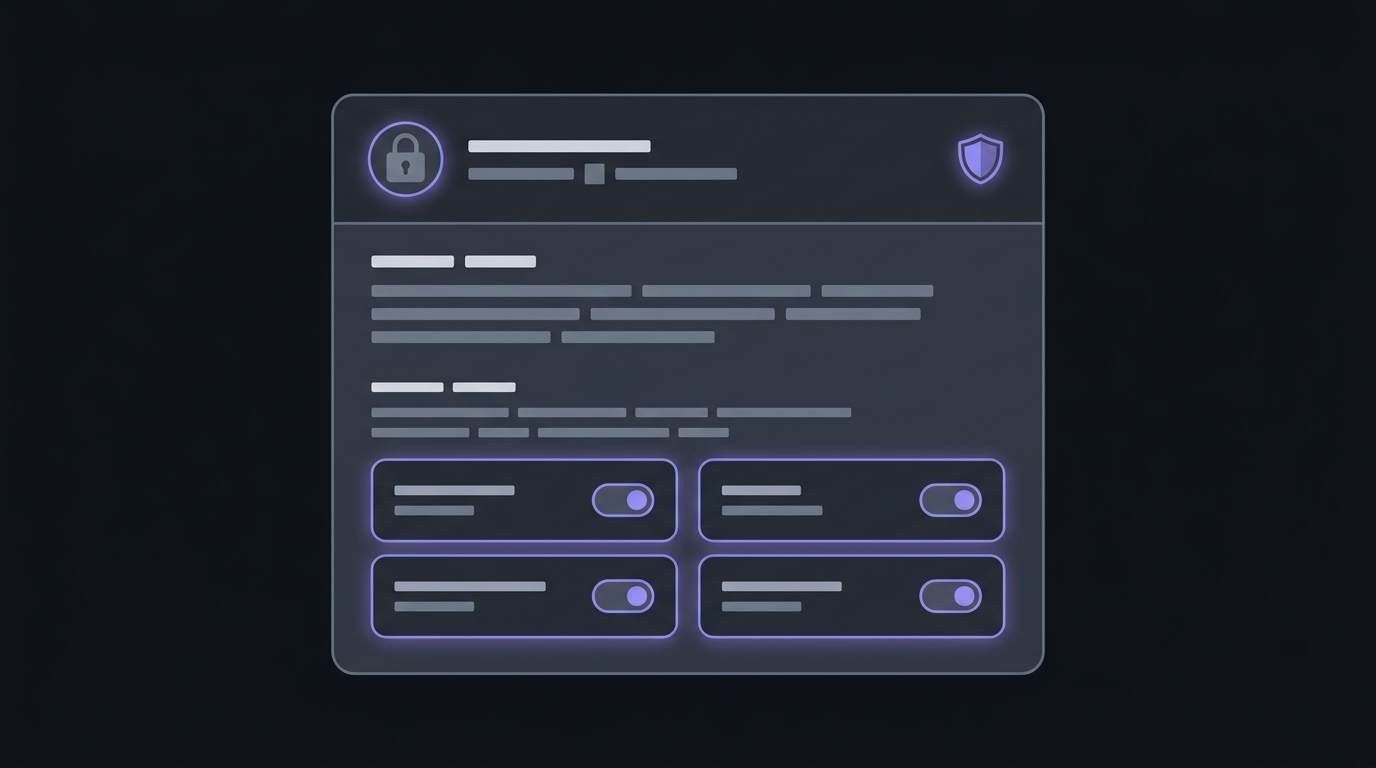
You see the origin, the username requested, and the specific action the agent plans to perform. To approve the fill, you must explicitly confirm the prompt.
If you reject the request, Maho halts the action and returns a deterministic denial code to the agent runtime:
ERR_VAULT_CONSENT_DENIED: User rejected credential grant for console.cloud.google.comThe agent understands immediately that the credential was withheld. It does not hang, retry blindly, or hallucinate alternative inputs. Execution pauses cleanly until you provide guidance. This keeps you in complete control of where your credentials go.
What this post does not claim
Section titled “What this post does not claim”We believe in being upfront about what our software does. This post focuses entirely on user interface design, ergonomics, and daily workflow.
Maho does not claim to replace specialized enterprise credential vaults or cross-platform password managers designed for large team administration. We make zero claims about cryptographic novelty or third-party audits.
If your team relies on enterprise-wide policy enforcement, shared access control lists across heterogeneous fleets, or complex compliance reporting, dedicated standalone tools remain essential.
Maho’s Vault is designed for a focused purpose: to fix the daily interaction friction of web browsing. Replacing awkward floating bubbles with a native panel, making auto-lock effortless, and gating agent actions behind typed human approval makes handling credentials feel calm, reliable, and predictable.