
Control a browser from the terminal with Maho CLI
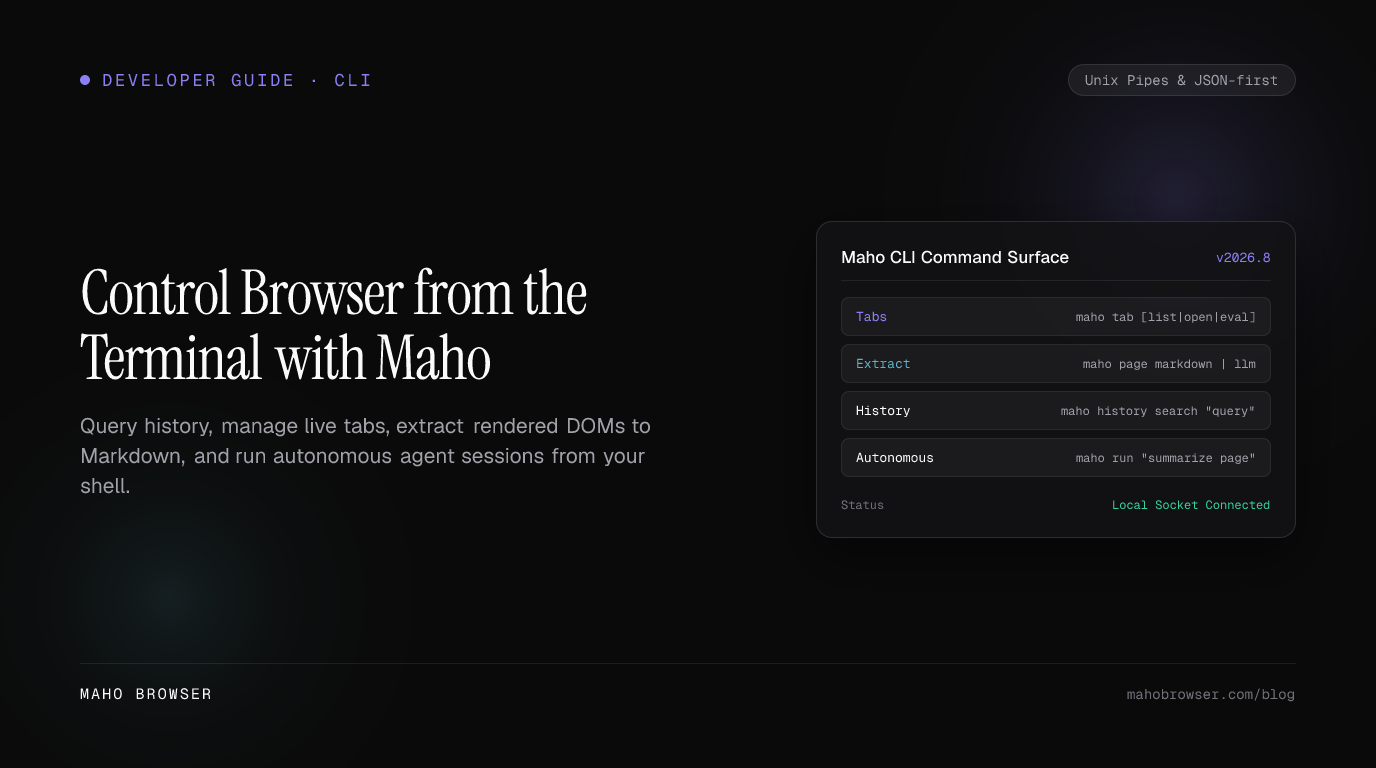
If you want to control a web browser from the terminal, Maho gives you a
single maho CLI for the browser state you already have open. You can list and
open tabs, inspect history and bookmarks, extract the active page as text or
Markdown, render a URL headlessly, or expose the same browser to an MCP client.
The short version is:
maho tab listmaho tab open https://example.commaho page markdownmaho headless https://example.comThat is a different goal from browser test automation. Maho CLI is for terminal browser control and scripting against your real Maho profile. If you need deterministic end-to-end tests with assertions, fixtures, and clean browser contexts, Playwright remains the better abstraction.
For the complete command catalog, keep the Maho CLI reference open next to this tutorial.
Why put a real browser behind a CLI?
Section titled “Why put a real browser behind a CLI?”Shell tools are excellent at composition. Browsers are excellent at rendering the modern web. The awkward part is the boundary between them.
curl is perfect when the HTTP response is the data. It is less useful when the
content you need is produced by client-side JavaScript, lives in a logged-in
profile, or is already open in the browser you are using for research.
A browser CLI lets you keep the shell workflow:
browser -> stdout -> jq / rg / fzf / llm / filewithout pretending a rendered page is the same thing as an HTTP response.
Maho’s command groups make that separation explicit:
maho tabcontrols live tabs.maho historyqueries local history.maho bookmarksreads and creates bookmarks.maho pageextracts the active rendered page.maho headless <url>starts from a URL instead of the active tab.maho mcphands browser tools to an external MCP host.
1. Confirm the CLI can see your browser
Section titled “1. Confirm the CLI can see your browser”Install/start Maho Browser and make sure maho is on your PATH:
maho --versionmaho tab listThen ask for the active tab:
maho tab activeFor scripts, immediately get in the habit of requesting JSON:
maho --json tab active | jq '.'Why start with jq '.' instead of a clever filter? Because the first job is to
see the structured shape your installed Maho build actually returns. Once you
know that shape, narrow the filter for the script you are writing.
The full tab command reference is at Browser Control CLI.
2. Open and close tabs from the shell
Section titled “2. Open and close tabs from the shell”Open a page:
maho tab open https://example.comQuote URLs containing shell metacharacters:
maho tab open 'https://example.com/search?q=browser+cli&sort=new'List the tabs again, choose the runtime tab id, then close one:
maho --json tab list | jq '.'maho tab close <tab-id>Do not build automation around a tab’s visual position. A tab id is the better handle because tabs move when the user reorders them or other scripts open new ones.
One rule that prevents brittle scripts
Section titled “One rule that prevents brittle scripts”Use human output for humans and JSON for programs.
This is good:
maho --json tab list | jq '.'This is brittle:
# Avoid splitting aligned terminal output by spaces.maho tab list | awk '{print $1}'The second script quietly depends on presentation formatting that is allowed to change independently of the JSON contract.
3. Extract the page you are actually looking at
Section titled “3. Extract the page you are actually looking at”The active tab is already rendered. You do not need to re-download it just to get the content.
For plain readable words:
maho page textFor document structure:
maho page markdownFor raw markup:
maho tab htmlFor targeted extraction, use the extract entry point and inspect the exact
arguments exposed by your installed build:
maho page extract --helpmaho --json page extract <extraction-arguments> | jq '.'A useful mental model is:
| You need | Use |
|---|---|
| words | maho page text |
| headings, lists, links, document structure | maho page markdown |
| one structured region | maho page extract … |
| the DOM/markup itself | maho tab html |
That choice matters for downstream AI. Sending 150 KB of HTML to a model when 18 KB of Markdown contains the same article wastes context and makes the prompt harder to inspect.
See Page Extraction CLI for the canonical reference.
4. Pipe browser content to ordinary Unix tools
Section titled “4. Pipe browser content to ordinary Unix tools”Once page content is on stdout, the browser disappears from the rest of the pipeline.
Count words:
maho page text | wc -wSearch the rendered page:
maho page text | rg -n 'MCP|permission|credential'Keep a copy while continuing the pipeline:
maho page markdown \ | tee /tmp/page.md \ | rg '^## 'This style is deliberately boring. Boring pipelines are debuggable pipelines.
If the output is wrong, you can inspect /tmp/page.md and determine whether the
problem happened in browser extraction or later.
5. Pipe a rendered page into an LLM
Section titled “5. Pipe a rendered page into an LLM”Any model CLI that reads stdin can sit after Maho.
maho page markdown \ | llm 'Summarize this page in five bullets. Keep all concrete numbers.'Ask for structured output and validate it with jq:
maho page markdown \ | llm 'Return a JSON array of dates, organizations, and numerical claims.' \ | jq '.'The llm executable here is just an example of a downstream model CLI. Maho
does not require it. The important architecture is that browser extraction and
model inference are separate processes.
That has three practical benefits:
- You can inspect exactly what the model received.
- You can swap model providers without changing browser control.
- You can choose not to use a model at all when
jq,rg, or a small script is enough.
6. Start from a URL with maho headless
Section titled “6. Start from a URL with maho headless”Sometimes there is no useful active tab. The URL is the input.
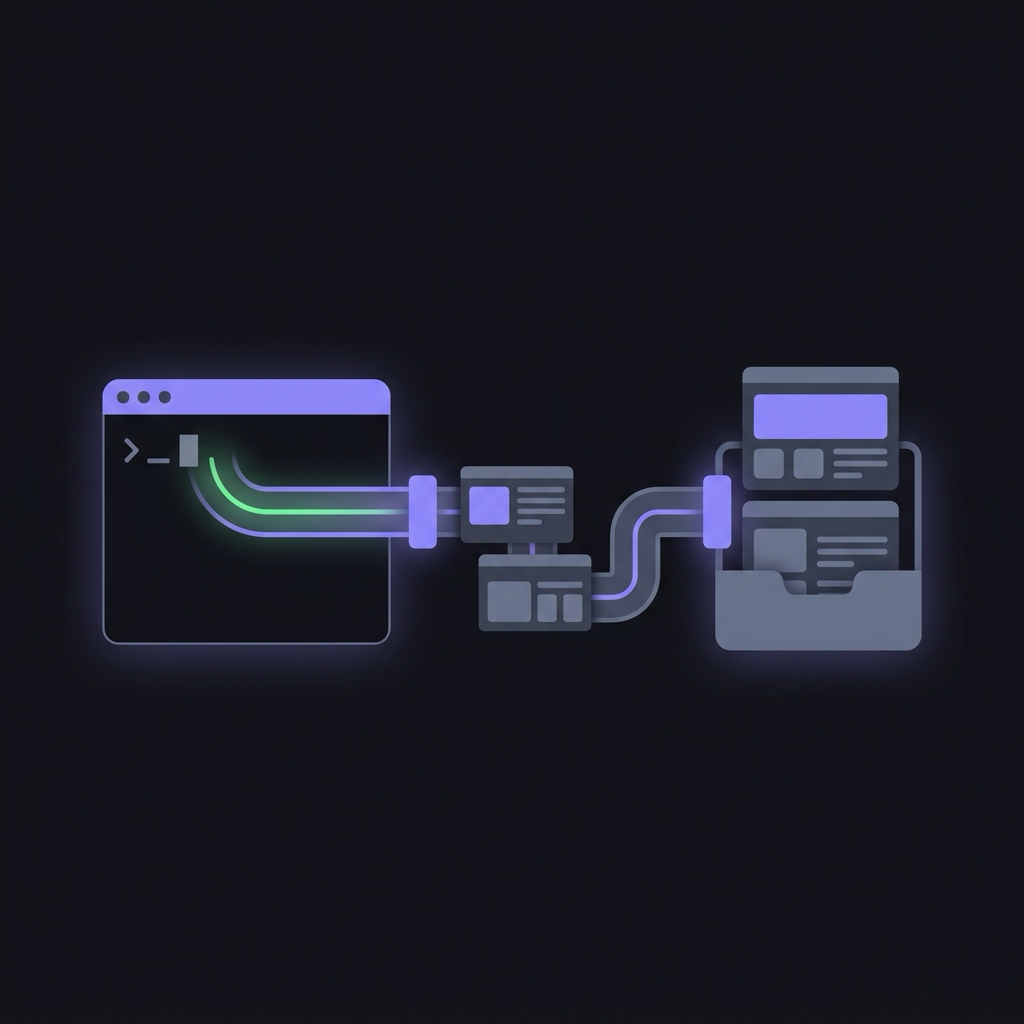
maho headless https://example.comNow the browser renderer becomes a source command:
maho headless https://example.com \ | llm 'Explain the main claim, evidence, and missing caveats.'Or capture first, analyze second:
maho headless https://example.com > /tmp/example-page.txtllm 'Summarize this page.' < /tmp/example-page.txtThis is the core difference from curl: the command is intended to give you a
browser-rendered result, not simply the raw HTTP response body.
7. Search history and bookmarks without opening UI panels
Section titled “7. Search history and bookmarks without opening UI panels”Terminal browser control is not only about tabs. Maho also exposes local browsing data.
Search history:
maho history search 'release notes'maho --json history search 'release notes' | jq '.'See today’s history:
maho history todayInspect top history entries/sites:
maho history topSearch bookmarks:
maho bookmarks search 'rust'Add a bookmark:
maho bookmarks add https://example.comThese commands are useful when the next step is already a shell step. There is no reason to open a History UI, copy a URL, switch to the terminal, and paste it if the history database can be queried directly.
8. Use tab eval only when you actually need JavaScript
Section titled “8. Use tab eval only when you actually need JavaScript”The CLI has an explicit JavaScript evaluation command:
maho tab eval 'document.title'It can return structured, serializable data:
maho --json tab eval '({ title: document.title, links: document.links.length })' \ | jq '.'This is powerful and therefore intentionally not the default extraction
path. Prefer page text, page markdown, or page extract when one of those
expresses the job.
Treat tab eval like DevTools code execution. Do not interpolate untrusted
strings into it.
Also note an important product boundary: Maho’s MCP server does not expose a generic eval tool. Agent-controlled page access uses typed tools so browser-side redaction and policy can be enforced. The MCP reference explains why.
9. When a task needs an agent
Section titled “9. When a task needs an agent”
A shell pipeline is best when you know the steps.
When the task itself needs to decide which browser actions to take, use an agent surface instead of scripting one yourself:
- Maho AI panel — the in-browser agent decides and acts with the same browser-side policy boundaries.
- Your own MCP-capable agent (Claude Code, Cursor, or any MCP host) — run
maho mcpand let the external model drive the browser tool surface. The model lives outside; browser policy stays inside Maho.
The decision is straightforward:
known deterministic steps -> shell pipelineAI decides the steps -> Maho AI panel or your MCP clientexternal AI host -> maho mcp10. A practical research script
Section titled “10. A practical research script”Here is a deliberately simple pattern for capturing two pages and asking a model to compare only the captured evidence:
{ echo '# Source A' maho headless https://example.com/a echo echo '# Source B' maho headless https://example.com/b} | tee /tmp/sources.md \ | llm 'Compare only these two sources. List agreements, contradictions, and missing evidence.'Why tee? Because it gives you the exact evidence bundle independently of the
model answer. If the answer looks suspicious, inspect /tmp/sources.md before
you rerun anything.
For a machine-readable collection step, request JSON at each structured Maho
boundary and normalize with jq before analysis.
Where Maho CLI fits next to Playwright and browser MCP
Section titled “Where Maho CLI fits next to Playwright and browser MCP”These tools overlap in the word “browser” but optimize for different jobs.
Maho CLI
Section titled “Maho CLI”Use it for personal/developer shell workflows against Maho Browser: current tabs, local history, bookmarks, page extraction, and headless URLs.
Playwright
Section titled “Playwright”Use it for repeatable browser automation/tests where you control the entire flow, browser context, assertions, and fixtures.
Maho MCP
Section titled “Maho MCP”Use it when Claude Desktop, Cursor, or another MCP host should decide which browser tool to call. The model is outside Maho; browser policy remains inside Maho.
You can use all three in one development environment without pretending they are substitutes.
Command cheat sheet
Section titled “Command cheat sheet”# Browser statemaho tab listmaho tab activemaho tab open https://example.commaho tab close <tab-id>
# Page datamaho page textmaho page markdownmaho page extract --helpmaho tab html
# URL -> browser-rendered stdoutmaho headless https://example.com
# Local browsing datamaho history search 'query'maho history topmaho history todaymaho bookmarks listmaho bookmarks search 'query'maho bookmarks add https://example.com
# MCPmaho mcpNext steps
Section titled “Next steps”- Maho CLI Reference — full command map and global flags.
- Browser Control CLI — tabs, history, bookmarks, JSON output.
- Page Extraction CLI — text, Markdown, extraction, headless, LLM pipelines.
- Maho MCP Server — connect Claude Desktop, Cursor, or another MCP client to the browser.